

Settings → Data Management → Import
What you can bring
AI conversations
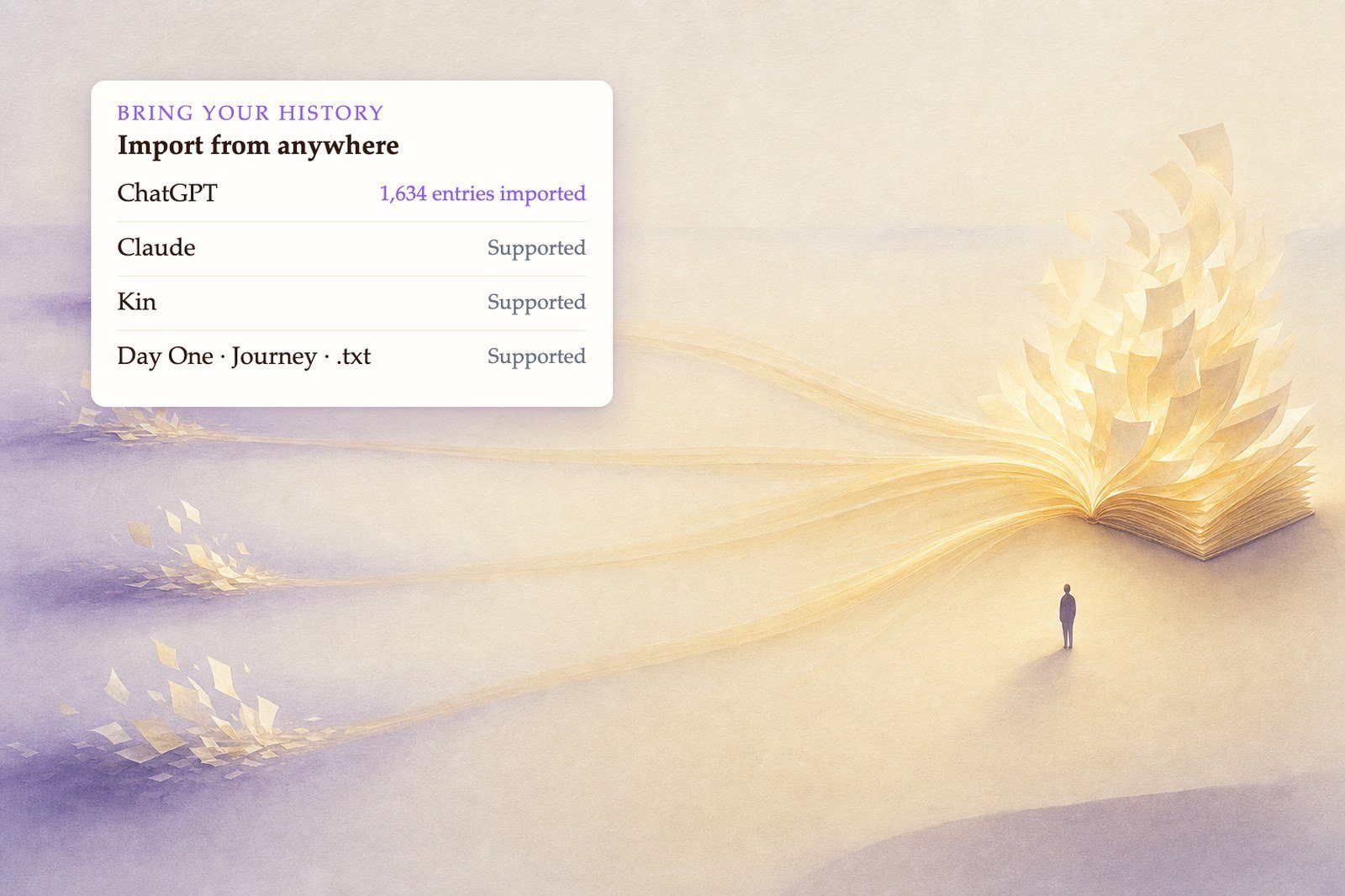
ChatGPT, Claude, Kin AI — the export files those apps give you.
Journaling apps
Day One, Journey, Reflectly, and
.zip archives from most others.Plain files
.json, .txt, .md — anything you have kept as text.Or just paste it
No export file? Paste the text straight in.
How it works
1
Open the importer
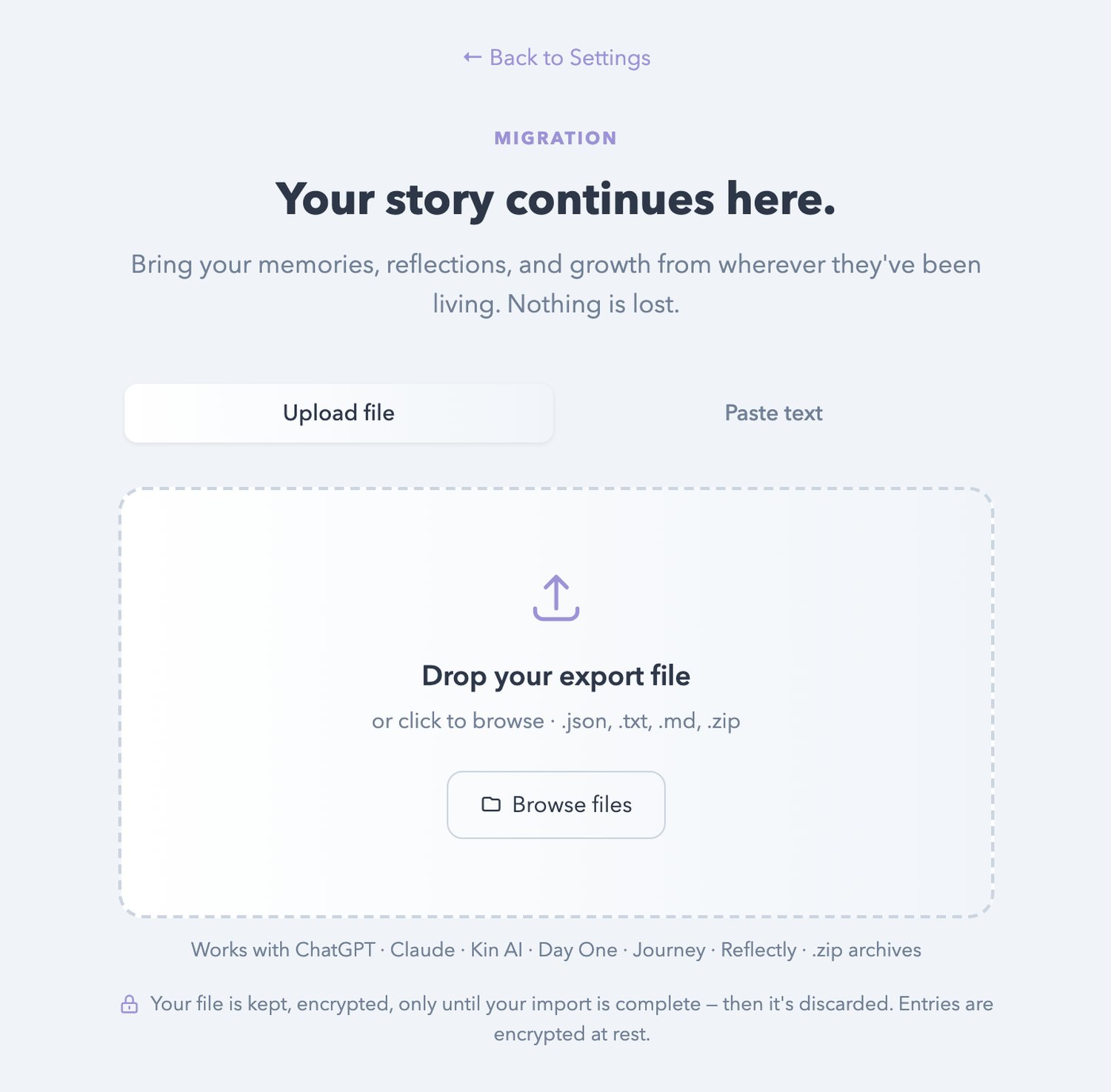
On the web, go to Settings → Data Management and click Import. On your phone, Settings → Import & export gives you the link.
2
Drop your file, or paste your text
Drag the export in, click to browse, or switch to the Paste text tab and paste directly.
3
Look at what we found
Life Note reads the file and shows you a count of journal entries and memories before anything moves. Nothing is written to your journal until you say so.
4
Bring them home
Confirm, and your entries settle into your timeline on the dates they were originally written.
Your mentors take a little while to absorb a large history. If the first entry after an import feels like it hasn’t caught up yet, give it a few minutes.