


Where to find it: Settings → Notifications
Setting up journal reminders
1
Open Notifications
Go to Settings → Notifications
2
Tap Add Reminder
You’ll see a form to create your reminder
3
Choose your time
Select the time of day that works best for you
4
Select days
Pick which days of the week this reminder should appear. You can choose specific days or every day.
5
Save
Your reminder is now active
Managing your reminders
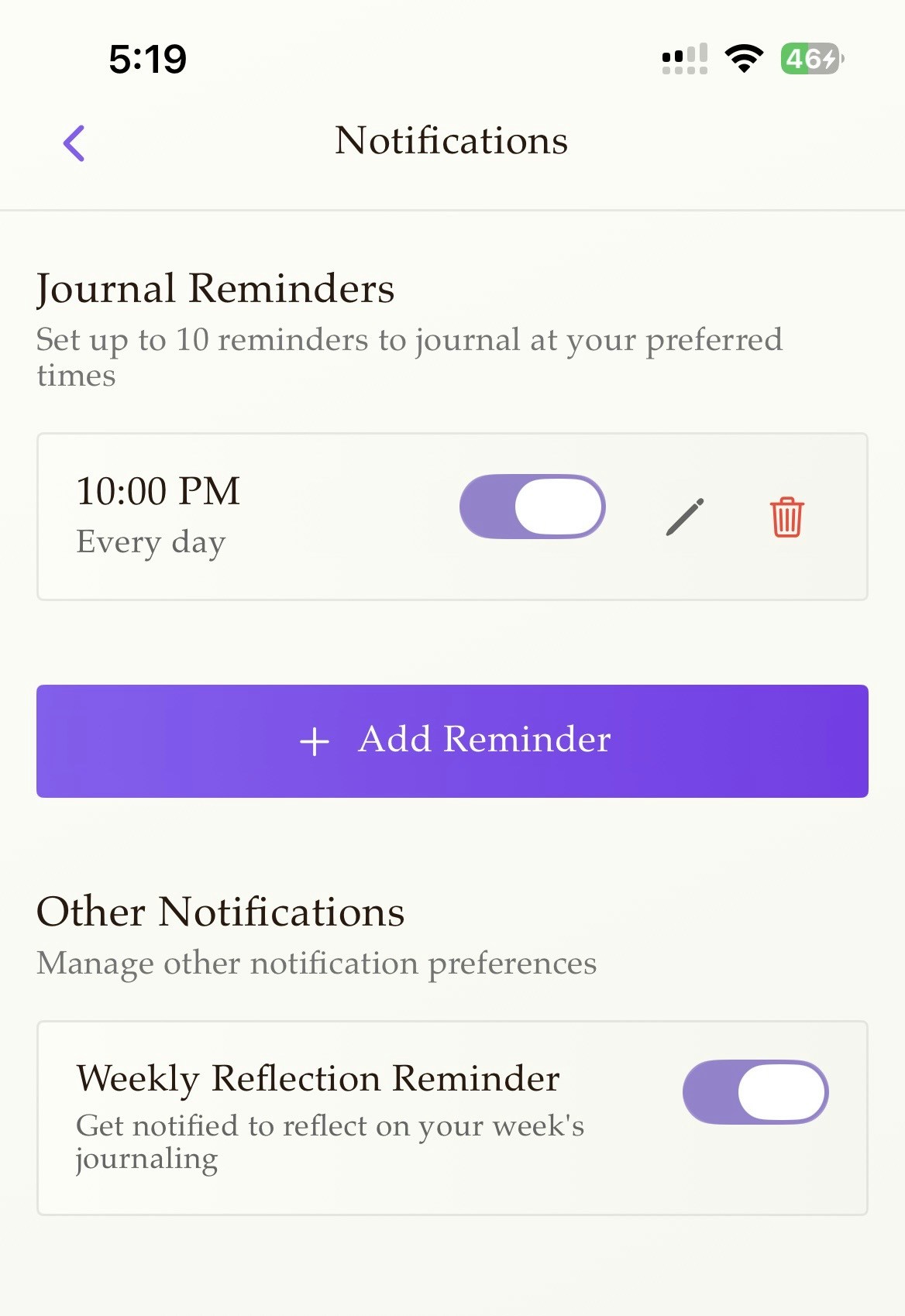
Each reminder you create appears in your Notifications settings. From here you can:- Toggle on/off — Temporarily disable a reminder without deleting it
- Edit — Change the time or days
- Delete — Remove the reminder entirely
Weekly reflection reminder
Beyond your custom journal reminders, Life Note offers a separate Weekly Reflection Reminder. When enabled, you’ll receive a notification to reflect on your week’s journaling. This pairs naturally with the Weekly Letter feature—a chance to see patterns across your entries and receive synthesized insights. Toggle this on or off in the “Other Notifications” section of your Notifications settings.Notification permissions
For reminders to work, Life Note needs permission to send you notifications. If you haven’t granted permission yet, you’ll see a prompt when you first visit the Notifications settings or try to create a reminder. Tap “Open Settings” to enable notifications for Life Note in your device settings.On iOS, you’ll need to allow notifications in your device Settings. On Android, you may be prompted directly within the app.