> ## Documentation Index
> Fetch the complete documentation index at: https://guide.mylifenote.ai/llms.txt
> Use this file to discover all available pages before exploring further.
# Bring your history in
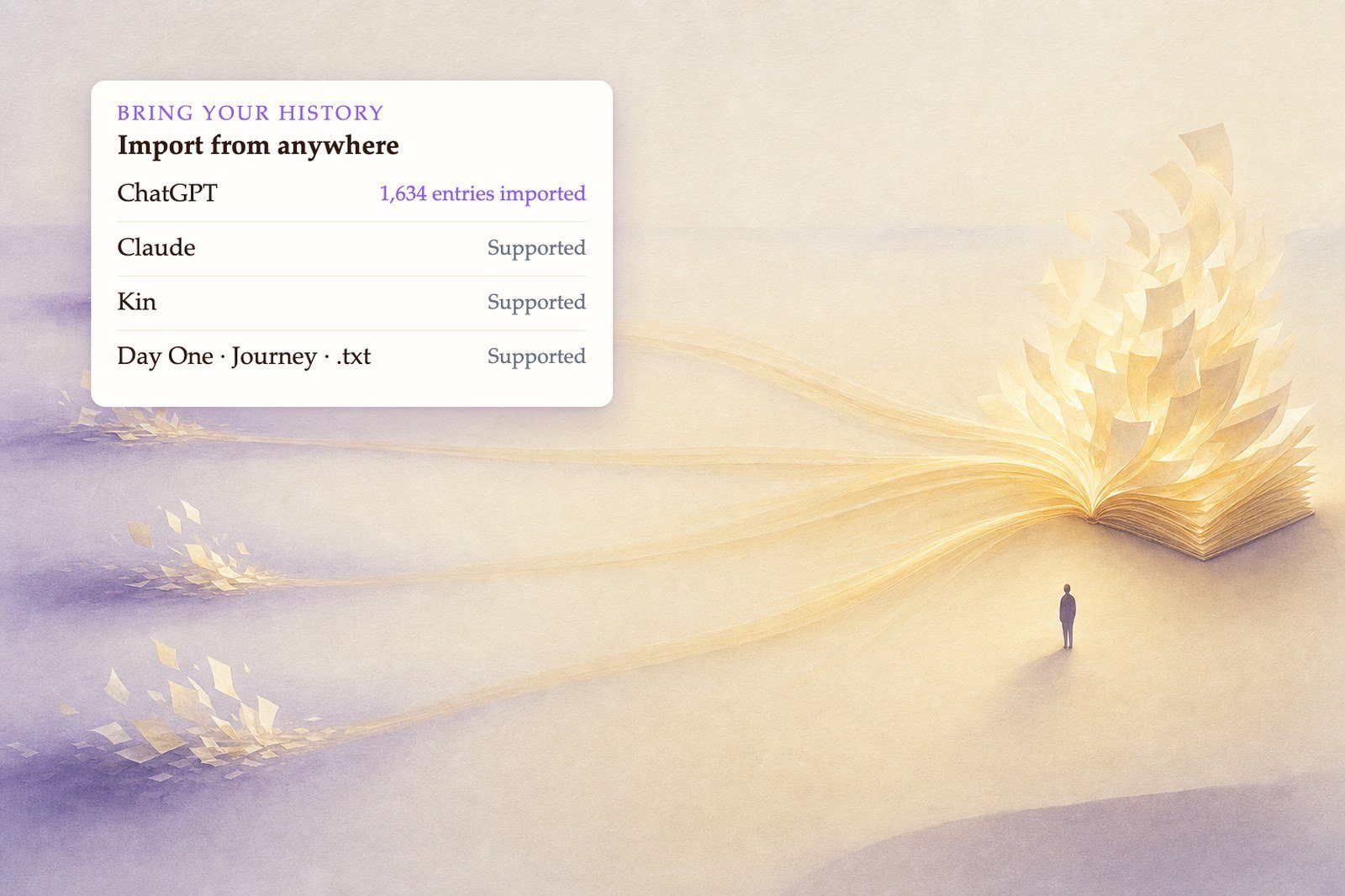
> Import years of journaling from ChatGPT, Claude, Kin, Day One and others — and pick up where you left off.
If you have been writing somewhere else, bring it with you. Your mentors read your past the same way they read your present, so an imported history is not an archive sitting in a corner — it is context they use from your very next entry.
 ## What you can bring
ChatGPT, Claude, Kin AI — the export files those apps give you.
Day One, Journey, Reflectly, and `.zip` archives from most others.
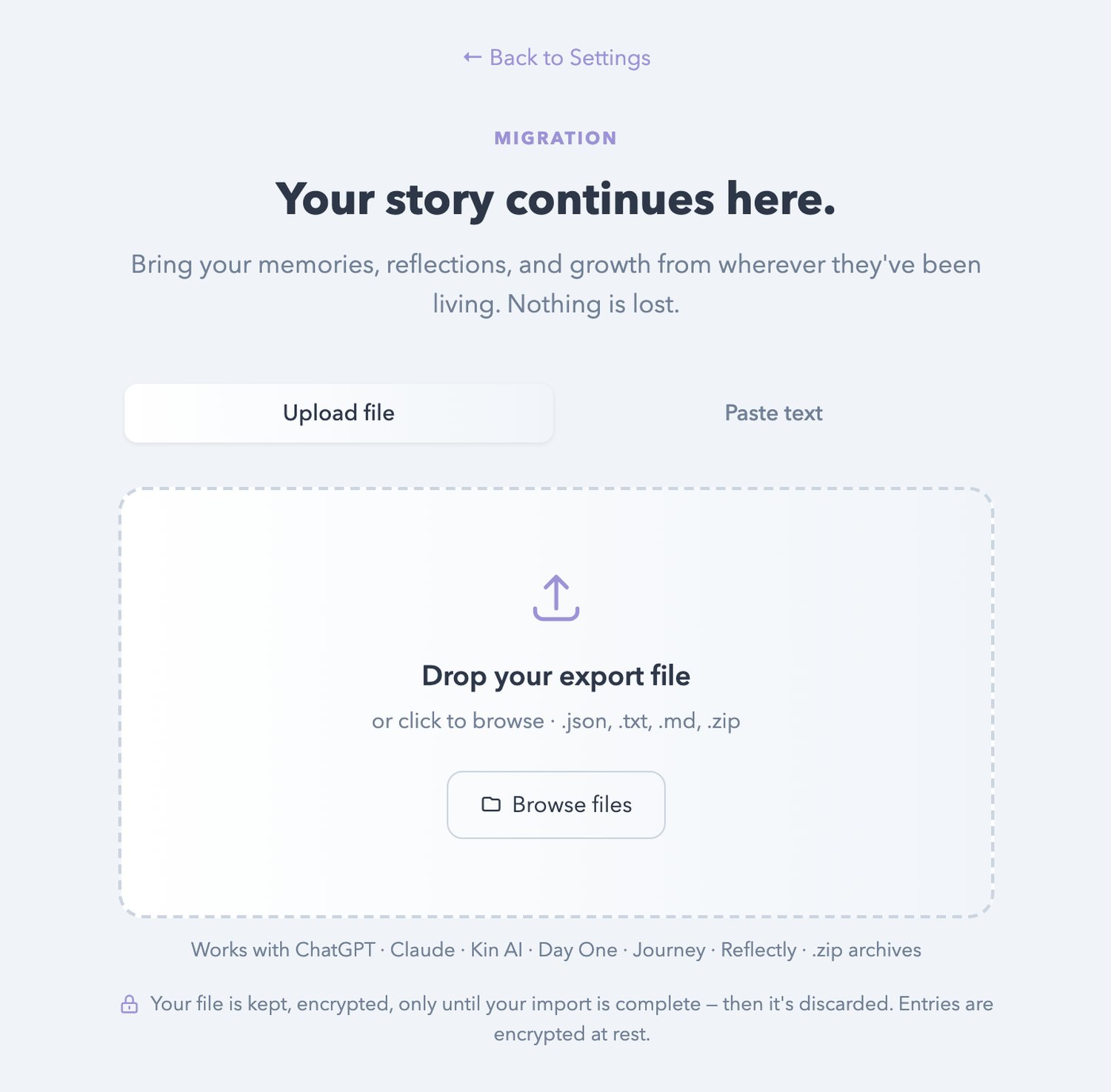
`.json`, `.txt`, `.md` — anything you have kept as text.
No export file? Paste the text straight in.
## How it works
Go to **Settings → Data Management → Import your journal**.
Drag the export in, click to browse, or switch to the **Paste text** tab and paste directly.
Life Note reads the file and shows you a count of journal entries and memories before anything moves. Nothing is written to your journal until you say so.
Confirm, and your entries settle into your timeline on the dates they were originally written.
Your mentors take a little while to absorb a large history. If the first entry after an import feels like it hasn't caught up yet, give it a few minutes.
## If the file is unusual
Exports vary wildly, and some are genuinely strange. When Life Note cannot read yours, it will offer to leave it with us — a real person formats it by hand and emails you when it's ready, usually within a day or two. You don't have to reformat anything yourself.
## Changed your mind
An import can be undone. Go back to **Settings → Data Management**, choose **Undo import**, and every entry from that batch is removed. Your original entries are untouched.
**Your file is not kept.** It is stored encrypted only until the import finishes, then discarded. The entries themselves are encrypted at rest like everything else you write — see [Privacy and security](/en/start-here/privacy-and-security).
## What you can bring
ChatGPT, Claude, Kin AI — the export files those apps give you.
Day One, Journey, Reflectly, and `.zip` archives from most others.
`.json`, `.txt`, `.md` — anything you have kept as text.
No export file? Paste the text straight in.
## How it works
Go to **Settings → Data Management → Import your journal**.
Drag the export in, click to browse, or switch to the **Paste text** tab and paste directly.
Life Note reads the file and shows you a count of journal entries and memories before anything moves. Nothing is written to your journal until you say so.
Confirm, and your entries settle into your timeline on the dates they were originally written.
Your mentors take a little while to absorb a large history. If the first entry after an import feels like it hasn't caught up yet, give it a few minutes.
## If the file is unusual
Exports vary wildly, and some are genuinely strange. When Life Note cannot read yours, it will offer to leave it with us — a real person formats it by hand and emails you when it's ready, usually within a day or two. You don't have to reformat anything yourself.
## Changed your mind
An import can be undone. Go back to **Settings → Data Management**, choose **Undo import**, and every entry from that batch is removed. Your original entries are untouched.
**Your file is not kept.** It is stored encrypted only until the import finishes, then discarded. The entries themselves are encrypted at rest like everything else you write — see [Privacy and security](/en/start-here/privacy-and-security).